Getting Started with the EasyBuild Local Directory
This page explains how to use EasyBuild for local installations on the Michigan State University (MSU) High Performance Computing Cluster (HPCC). It assumes you are already familiar with the basic EasyBuild commands described in the EasyBuild Reference.
Using the local EasyBuild repository allows you to build, test, and manage software in your own directory without affecting recipes installed by the EasyBuild module. We strongly recommend if it is your first time trying the advanced topics you try in your local repository.
If this is your first time using EasyBuild or haven't used it in a while, take a look at the EasyBuild Tutorial to get a better understanding of the terms used in this guide and what is happening behind the scenes when running these commands. If you feel confident in your understanding of EasyBuild, you can skip to the Hello World Example to make sure everything is working correctly.
This documentation was contributed by ICER interns Connor Neiheisel and Anna Nguyen in collaboration with their mentor Nicholas Panchy.
Hello World Example
This repository includes a simple "Hello, World!" example to demonstrate the process of building and installing software using EasyBuild.
git clone https://github.com/MSU-ICER/easybuild_local

cd easybuild_local

source activate_easybuild_local.sh

eb --parallel=8 --robot ./easyconfigs/Hello-2.10-GCCcore-12.3.0.eb

source eb_local_use.sh

module load Hello/2.10-GCCcore-12.3.0

hello
Hello, world!.
Advanced Topics
Installing EasyConfigs from EasyBuild GitHub
EasyBuild uses EasyConfig files (.eb files) to download, compile, and install software. .eb files are contained on the HPCC repository. This repository contains a large collection of pre-configured build recipes. You can browse and search these files using eb -S <software>.
When a .eb file already exists for the software and toolchain you want, you can simply install it directly using eb --robot. In some cases, you may want to modify a .eb file. This is common when you want to change compiler toolchains or you need different dependency versions. To do this, you can copy the .eb file using eb <software> --copy-ec. This copies the .eb file from the system repository into your local EasyBuild directory and allows you to edit it.
If a .eb file does not already exist, you can search the EasyBuild GitHub EasyConfigs Repository . Once you have a .eb file, you can build the software through EasyBuild in the same way as any other package or you can build it directly from the GitHub with --from-pr or --from-commit.
From Commit
It is recommended to download from a commit rather than pull request, as commits are essentially permanent unless deleted while pull requests may change. Using a commit will guarantee reproducibility of the files, while a pull request may change.
1. Locating the Easyconfig file
Go to the EasyBuild EasyConfig repository and locate the desired EasyConfig.
All available EasyConfigs are in the easybuild/easyconfigs directory in the EasyConfigs repository.
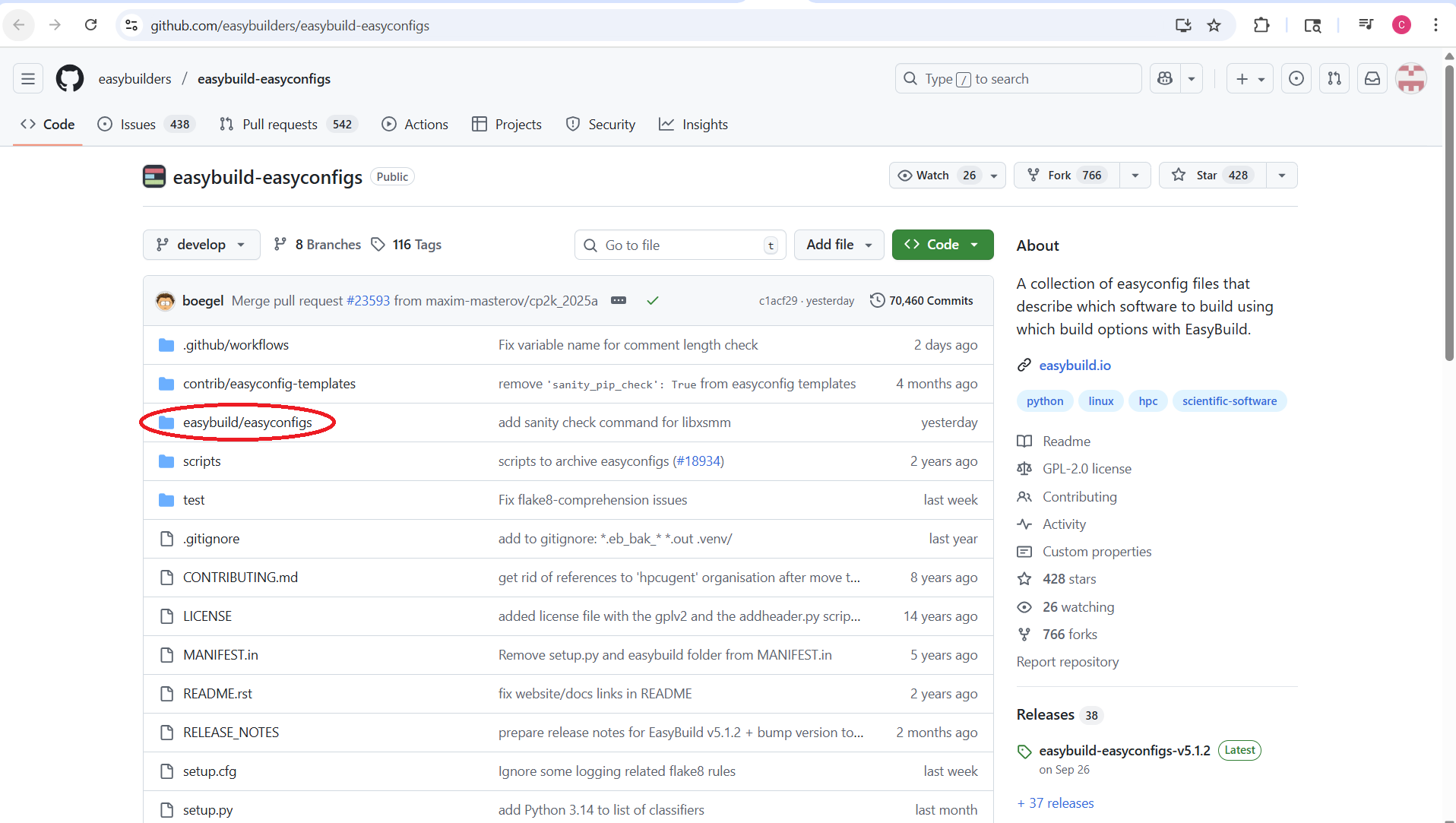
This will open an alphabetically organized directory. Click on the EasyConfig you want to download. In this example we want OpenFOAM-v2112-foss-2023a.eb:
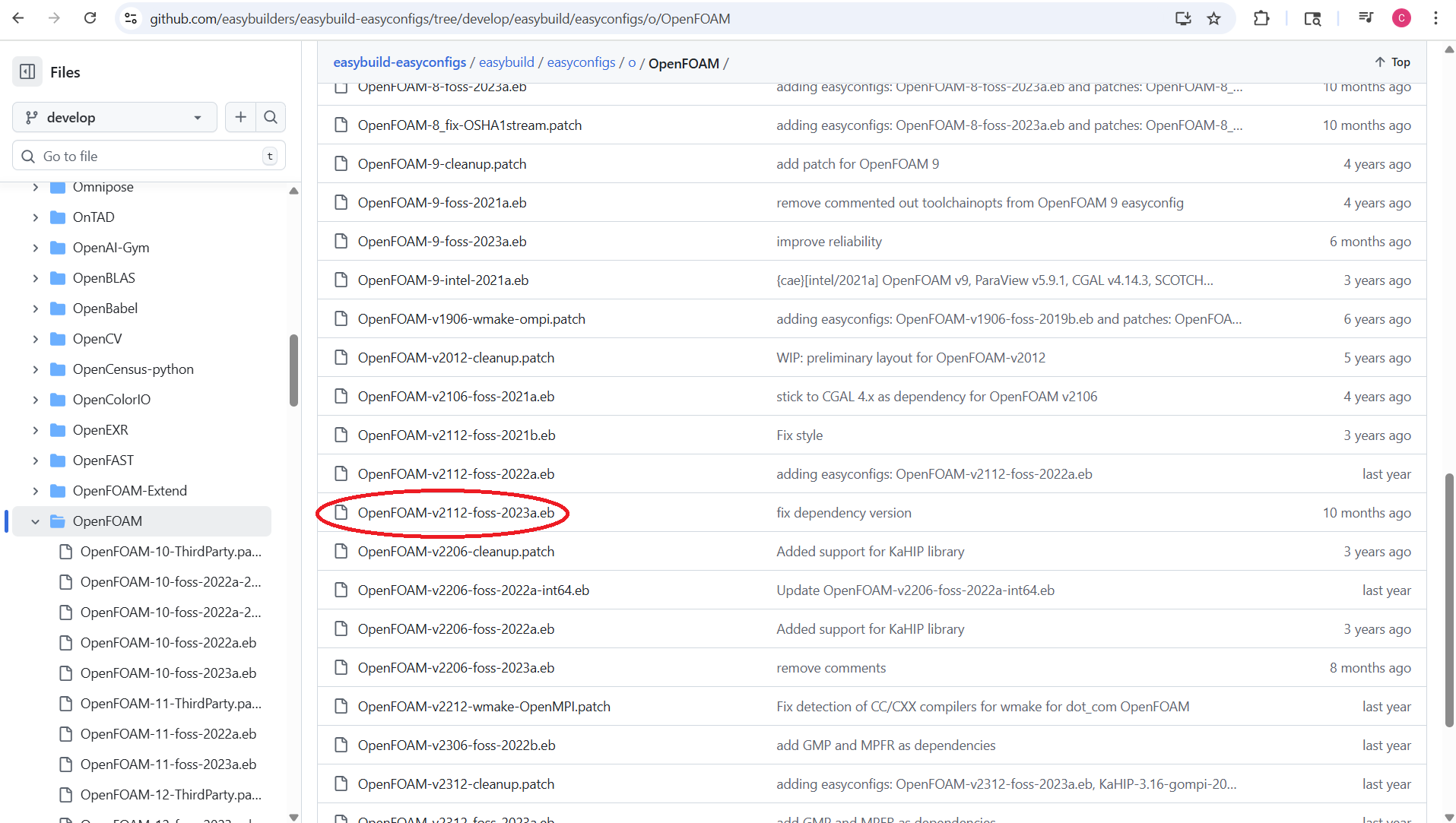
2. Find the Most Recent Commit
Once you find the file you want to download, click History.
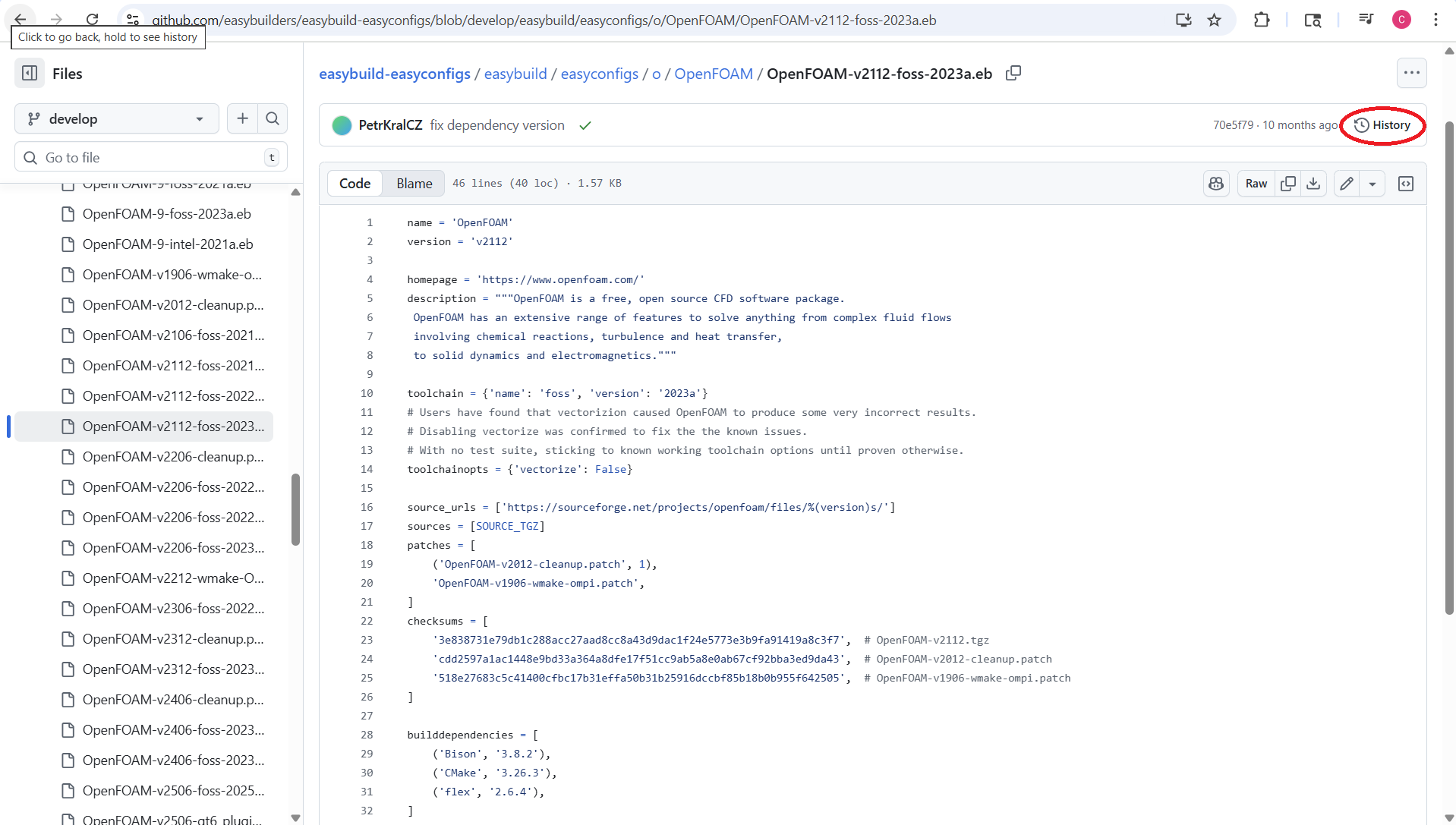
Once on the commits screen, click on the commit you want to download. In this case, the “fix dependency” version is being downloaded.
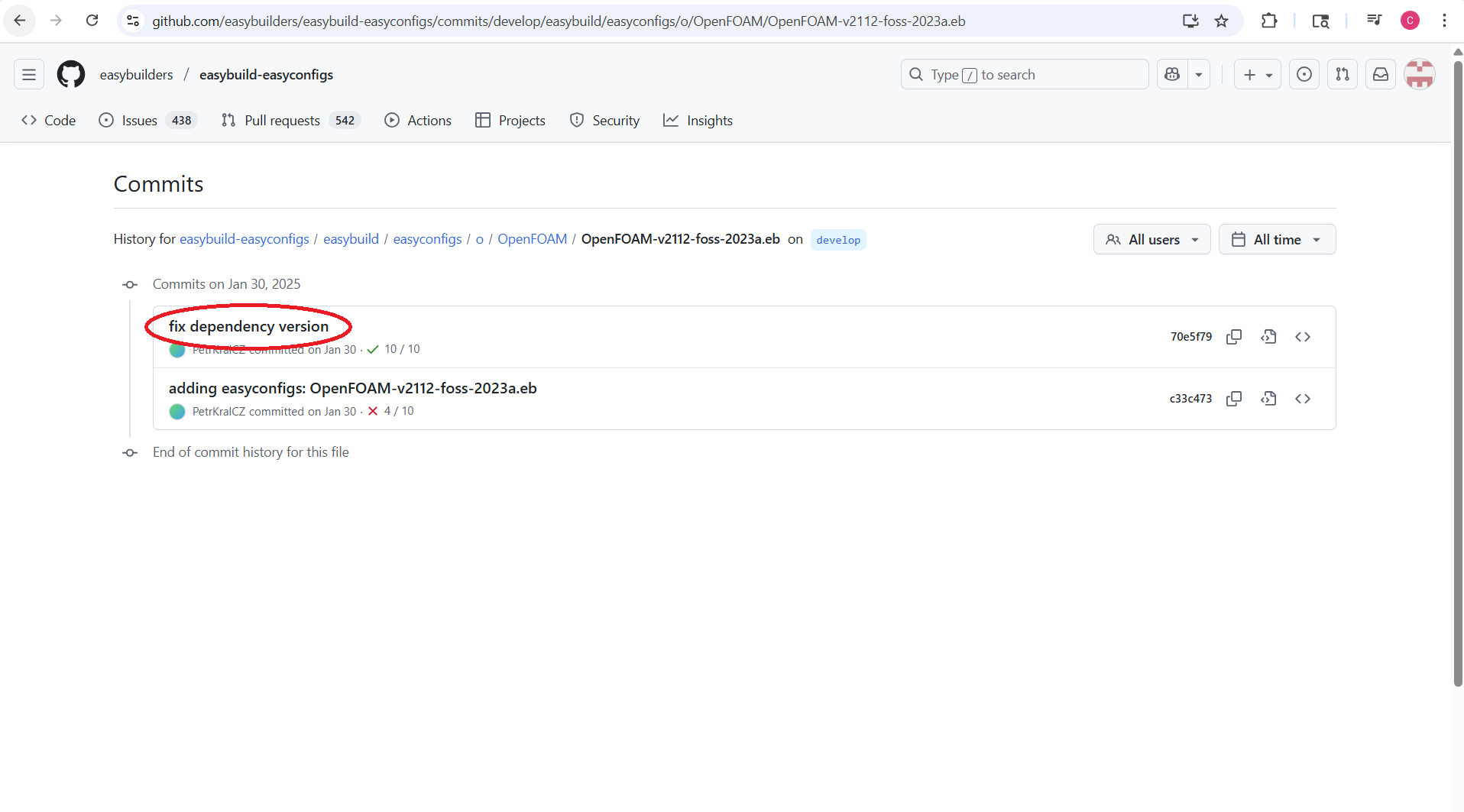
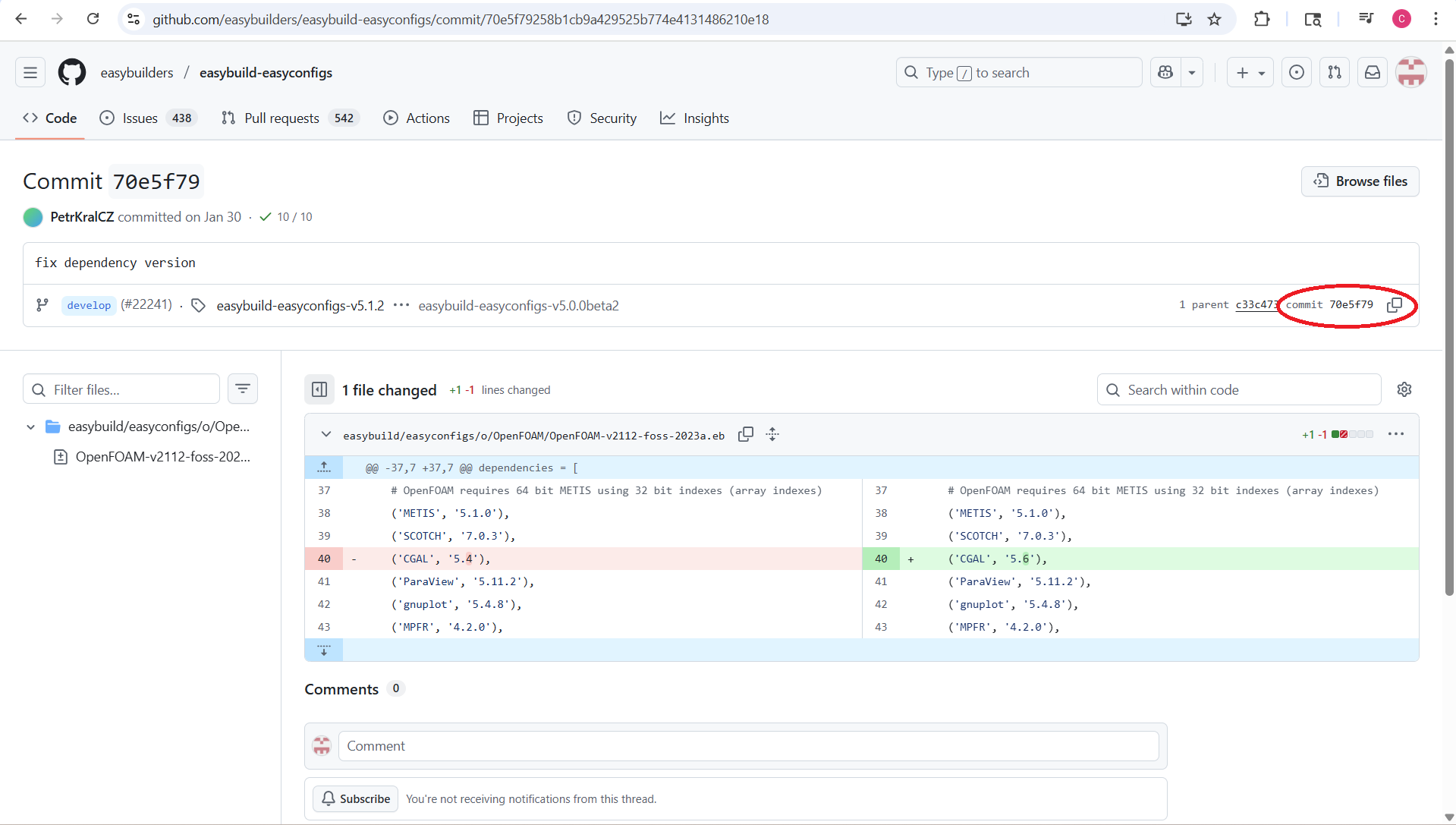
Once on the commit page, the commit number can be copied from the upper right side of the page using the copy button.
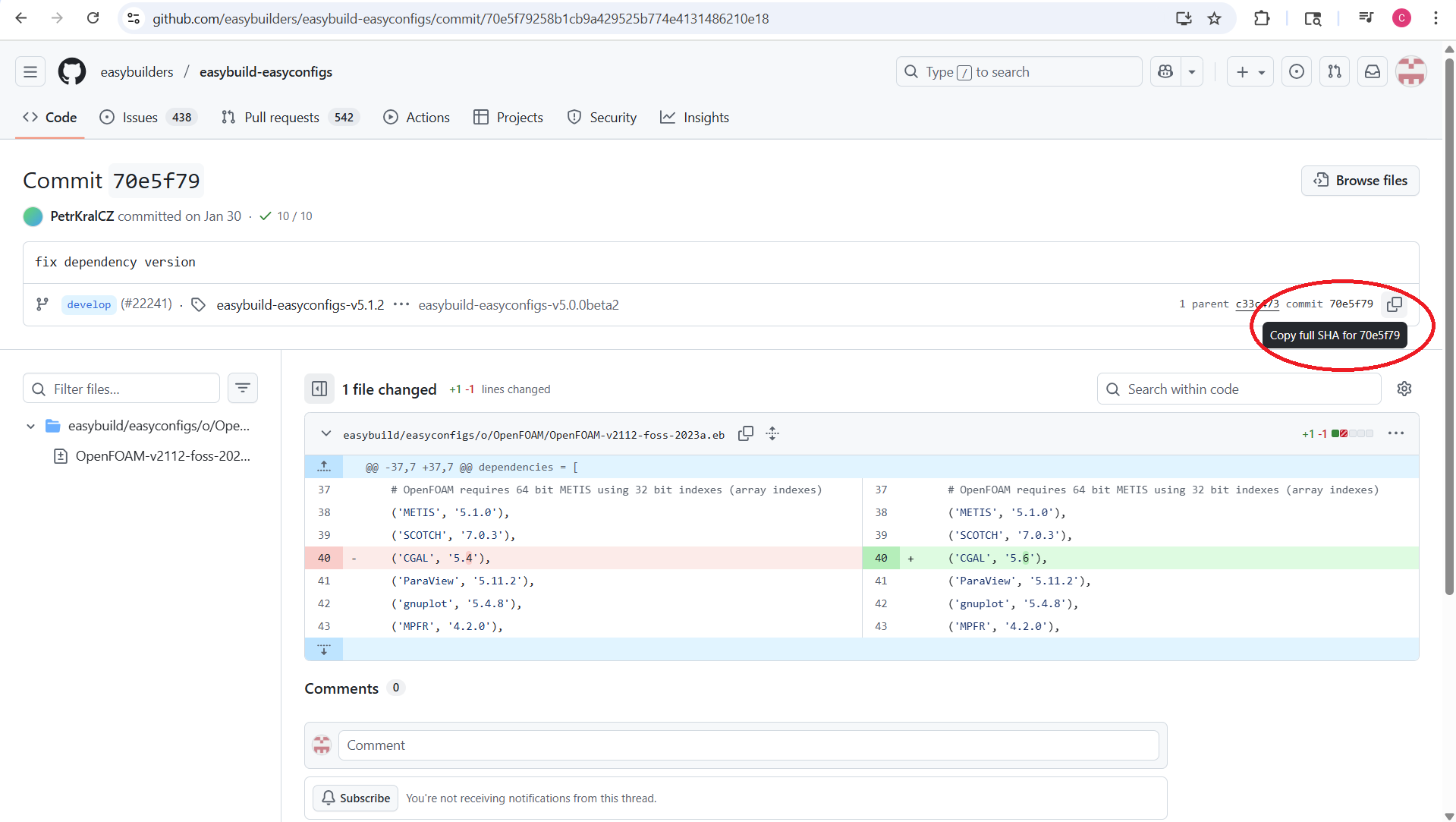
When you hover over the copy button, you should see "Copy full SHA for" and the first 7 characters of the SHA tag. Click the copy button to copy the full SHA tag.
Warning
The --from-commit command needs all 40 characters which are copied when pressing the copy button. Only copying the 7 characters shown next to the copy button will not work.
3. Install the Software Using the Commit Tag
To download OpenFOAM from the commit tag, run:
eb OpenFOAM-v2112-foss-2023a.eb --from-commit [SHA Tag] --robot
For this version of OpenFOAM the command is:
eb OpenFOAM-v2112-foss-2023a.eb --from-commit 70e5f79258b1cb9a429525b774e4131486210e18 --robot
Note
It is recommended to perform the installation on the HPCC Interactive Desktop because some downloads may take hours.
From Pull Request
If a download fails with using --from-commit, then trying to download the EasyConfig file with the pull request number may work.
1. Finding the Pull Request Number
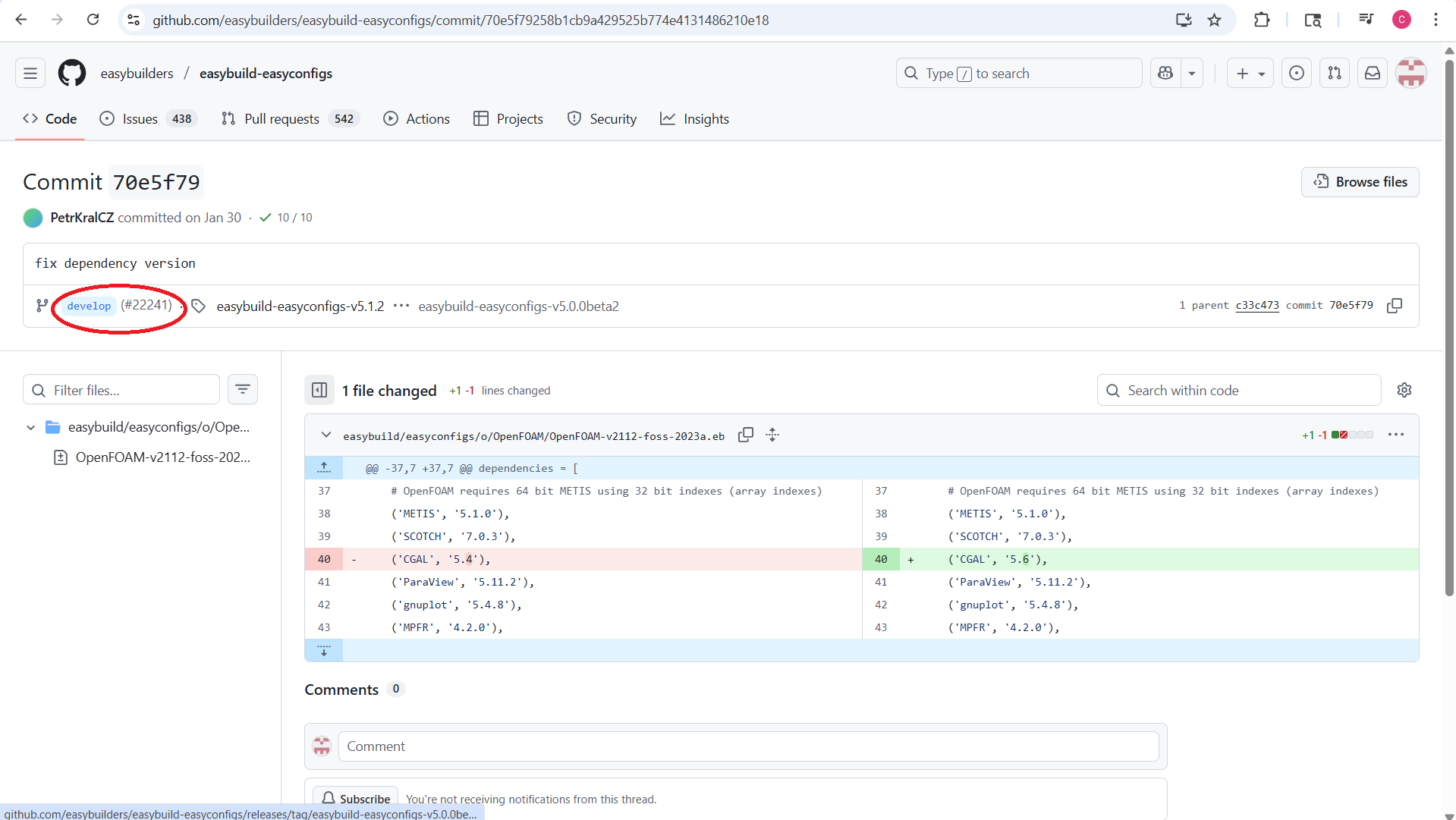
Follow the first and second section in "From Commit" in order to find the commits EasyConfig File. The pull request number will be found in the top left corner. The pull request number for this OpenFOAM EasyConfig is 22241.
2. Installing the Software Using the Pull Request Number
To download OpenFOAM from the pull request number, run:
eb OpenFOAM-v2112-foss-2023a.eb --from-pr [Pull Request Number] --robot
For this version of OpenFOAM the command is:
eb OpenFOAM-v2112-foss-2023a.eb --from-pr 22241 --robot
Common Problems
Module Already Loaded Error
EasyBuild works with the module system when installing software. It expects to be loading and unloading modules itself. If modules are already loaded, this can cause problems with the install. For example, if you see:
FAILED: Installation ended unsuccessfully
(build directory: /mnt/ufs18/home-251/wunderky/easybuild_local/tempdir/build/Hello/2.10/GCCcore-11.2.0):
build failed (first 300 chars):
Module is already loaded (EBROOTHELLO is set), installation cannot continue. (took 3 secs)
Here are some steps to try and resolve the issue:
-
Unload the module before running the installation command:
module unload Hello -
See if the environment variable is set:
env | grep EBROOTHELLOIf the environment variable is set, unset it:
unset EBROOTHELLO -
If problems persist, reset the environment:
module purge
Lock Already Exists Error
When attempting to install software using EasyBuild modules, if internet disconnects or the terminal closes a lock file error could occur. A lock file is created when installing an EasyConfig to prevent multiple downloads of a module occurring at the same time. It should be removed at the end of the installation, but a disconnect can cause the lock file to not be deleted. If you see:
ERROR: Installation of Tcl-8.6.12-GCCcore-11.3.0.eb failed: 'Lock /mnt/home/USER/.local/easybuild/software/.locks/_mnt_home_USER_.local_easybuild_software_Tcl_8.6.12-GCCcore-11.3.0.lock already exists, aborting!'
Try running:
rm -r /mnt/home/USER/.local/easybuild/software/.locks/_mnt_home_USER_.local_easybuild_software_Tcl_8.6.12-GCCcore-11.3.0.lock
This should delete the lock file and allow the download to properly continue.
If the file is not able to be deleted, then the --ignore-locks command can be used.
eb <easyconfig_file.eb> --robot --ignore-locks
This will ignore any lock files that cause the download to fail.
Updating Config Files to a new Toolchain
Note
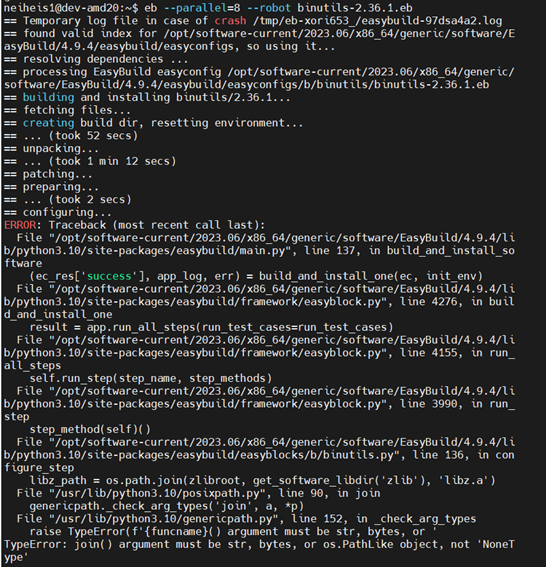
Older toolchains are not supported. Anything with a 2022a toolchain or earlier may fail to download. See blog post for more details.
Below is an example of an error that occurs when failing to install software using older toolchains.
To update the toolchain and dependencies, you can use the command:
eb <eb_file_to_update> --try-toolchain-version <VERSION> --experimental --try-update-deps --copy-ec <FOLDER NAME>
There are two sets of flags that are part of this command. One flag is:
--try-toolchain-version <VERSION>
This flag specifically updates the toolchain.
The other set of flags is:
--experimental --try-update-deps
This command updates the dependencies to match newer versions that are already available in the toolchain version specified above.
When updating dependencies like this, in order to keep the original copy and store the updated version in a folder:
--copy-ec <FOLDER NAME>
The EasyConfig can be stored in a folder that already exists or can create a new folder with an input name. This command only creates the eb file and does not install it.
Example: Upgrade MCL-22 from GCCcore-11.3.0 to GCCcore-12.3.0, update dependencies, creates folder out_folder and stores the updated EasyConfig in this folder:
eb MCL-22.282-GCCcore-12.3.0.eb --try-toolchain-version 12.3.0 --experimental --try-update-deps --copy-ec out_folder
...
== found valid index for /opt/software-current/2023.06/x86_64/amd/zen2/software/EasyBuild/5.1.2/local/easybuild/easyconfigs, so using it...
== found valid index for /opt/software-current/2023.06/x86_64/amd/zen2/software/EasyBuild/5.1.2/local/easybuild/easyconfigs, so using it...
== found valid index for /opt/software-current/2023.06/x86_64/amd/zen2/software/EasyBuild/5.1.2/local/easybuild/easyconfigs, so using it...
== found valid index for /opt/software-current/2023.06/x86_64/amd/zen2/software/EasyBuild/5.1.2/local/easybuild/easyconfigs, so using it...
== found valid index for /opt/software-current/2023.06/x86_64/amd/zen2/software/EasyBuild/5.1.2/local/easybuild/easyconfigs, so using it...
1 file(s) copied to out_folder
Then, navigate into the folder.
cd out_folder/
Check the folder to ensure the EasyConfig is inside.
ls -l
-rw-r----- 1 USER cse 1074 Nov 30 19:15 MCL-22.282-GCCcore-12.3.0.eb
eb MCL-22.282-GCCcore-12.3.0.eb --force --robot
...
== cleaning up...
== ... (took < 1 sec)
== creating module...
  >> generating module file @ /mnt/home/USER/.local/easybuild/modules/all/MCL/22.282-GCCcore-12.3.0.lua
== ... (took 1 secs)
== permissions...
== ... (took < 1 sec)
== packaging...
== ... (took < 1 sec)
== COMPLETED: Installation ended successfully (took 28 secs)
== Results of the build can be found in the log file(s) /mnt/home/USER/.local/easybuild/software/MCL/22.282-GCCcore-12.3.0/easybuild/easybuild-MCL-22.282-20251130.191741.log
== Build succeeded for 1 out of 1
== Summary:
   * [SUCCESS] MCL/22.282-GCCcore-12.3.0
== Temporary log file(s) /tmp/eb-ce_l8wyu/easybuild-dq8dxgr9.log* have been removed.
== Temporary directory /tmp/eb-ce_l8wyu has been removed.